

For more on our tenant security architecture, read the Antithesis security manifesto.
- Pushing images to the Antithesis registry
- Kicking off tests
- Viewing reports
- Multiverse debugging
Machine credentials
Credentials for your CI system are generated by Antithesis and sent to you securely when you sign up. These credentials are used to push images and to run tests. Because these are long-lived credentials, after your initial setup period, you should not use them in manual or interactive processes. If these credentials are compromised, it is straightforward for Antithesis to rotate them and issue you new credentials. The following credentials are generated for each Antithesis tenant:$TENANT_NAME.key.json- Container image registry credentials. A JSON file for pushing images to the Antithesis image registry created for your tenant.
user and password- Webhook credentials. Used to kick off Antithesis tests.
Single Sign-On
Antithesis offers two methods of single sign-on (SSO) for user authorization: Login with Github, or Login with IdP.Login with GitHub
Login with GitHub
Customers can choose to authorize users to access their customer tenants based on one of several criteria.Users who meet the criterion will be given full access to your tenant, so be careful to choose a criterion that includes only trusted members. Your GitHub organization admin needs to approve our app and your chosen authorization criterion.Follow these steps:
-
Send your authorization criterion
To enable SSO with GitHub, provide us with your authorization criterion. If your criterion requires your GitHub organization admin’s approval, you’ll need to authorize our app.
Currently, we support the following criteria:
- Organization membership: All active members of the provided GitHub organization are given access. Send us the organization name(s).
- Team membership: Teams are subsets of organizations. All members of a team or list of teams are given access. We support both visible and secret teams within the organization. Send us the organization name and a list of team IDs. To get your team ID, use the List teams API, choose the teams you want to authorize, and send their IDs.
- Public repo access: All collaborators in a public repository in the organization are given access. Send us the organization name and the repository name.
- Verified email domain: Users who have a verified email associated with their GitHub account matching a customer-provided domain are given access. Note that this doesn’t have to be the email address they registered with - email addresses can be cheaply added by users. Send us the domain. This criterion doesn’t require admin approval.
-
Authorize our app
If your chosen criterion requires admin approval, you’ll need to follow this step.
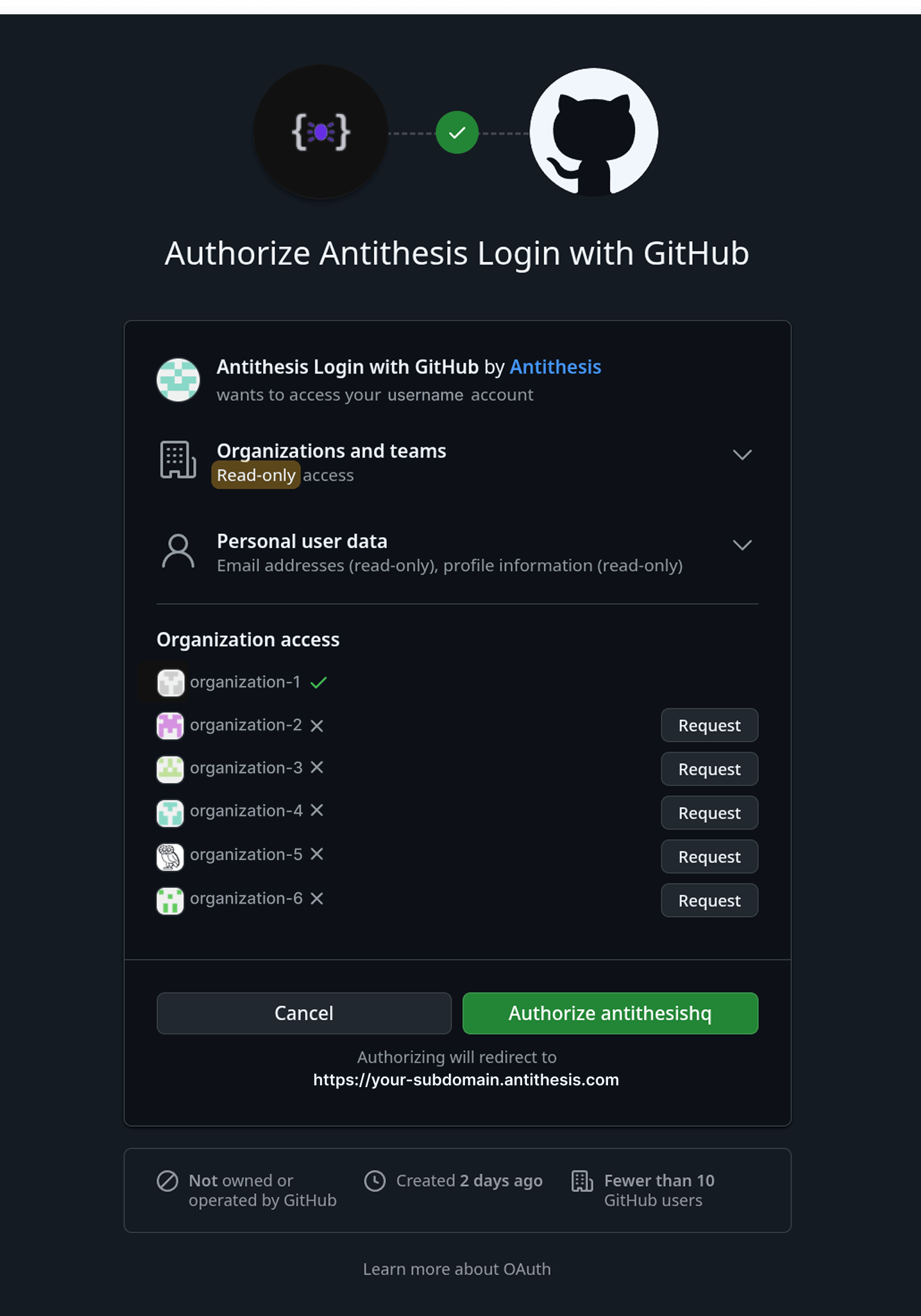
If you’re your GitHub organization’s admin, go to your tenant home -
<your-tenant>.antithesis.com. You’ll be prompted to authorize.If you’re not an admin, go to your tenant home. You’ll be prompted to request access. You can click “Request” for the organizations you want to authorize. Your organization admin will need to approve your request.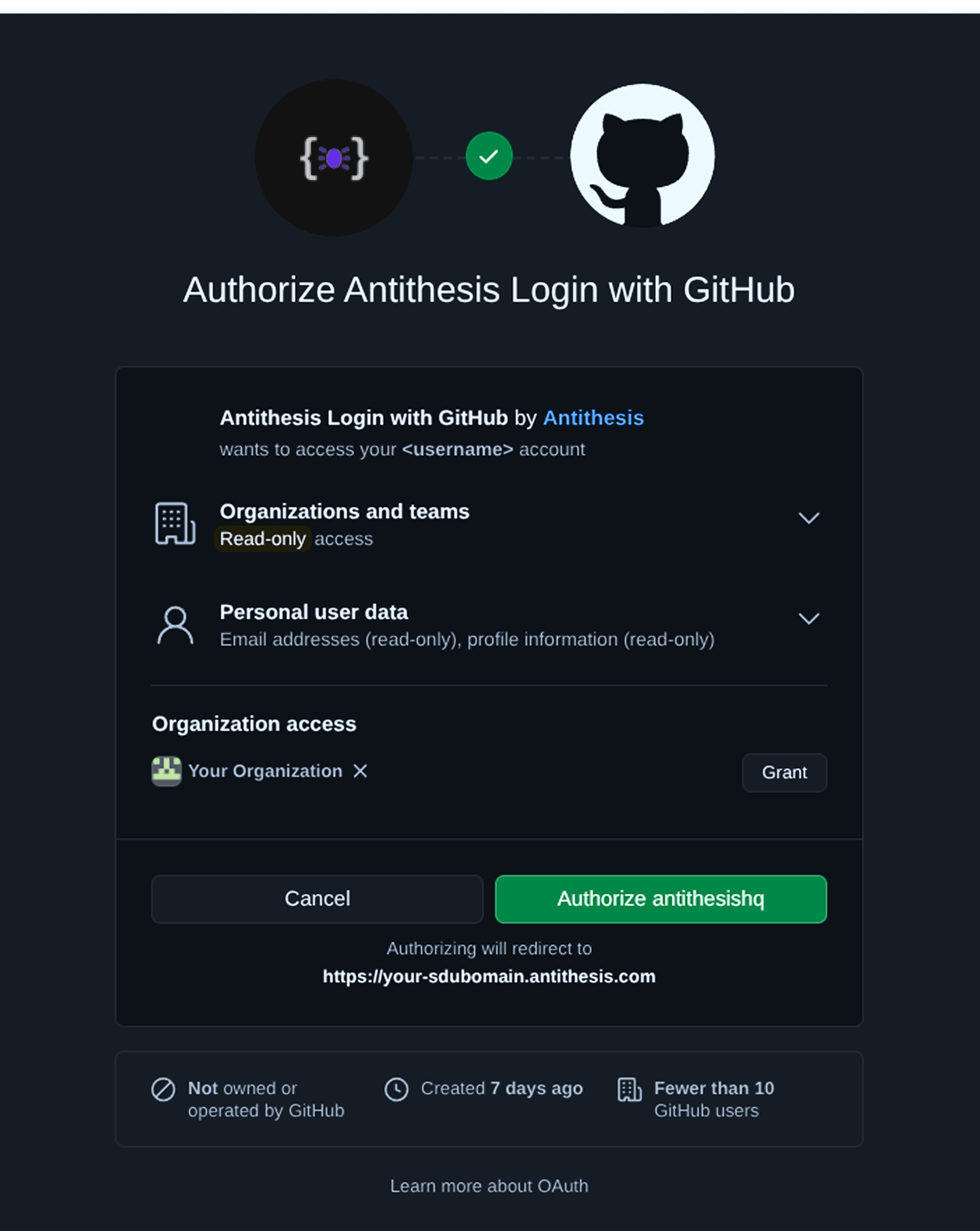
Login with Identity Provider (IdP)
Login with Identity Provider (IdP)
Customers can integrate Antithesis with their Identity Provider (IdP) to enable SSO. This integration is available for any IdP that implements the OIDC protocol. Identity Providers who implement the OIDC protocol include:Please consult your IdP’s documentation for more information on their OIDC support.The following steps are a general guide to OIDC integration. The exact flow will be IdP specific — consult their documentation for details.
-
Antithesis provides you a login redirect. It’ll be something like:
https://${tenant-domain-name}.antithesis.com/oidc/callback. - In your Identity Provider, create a new project/application.
- Under your project/application, generate new OIDC/OAuth2 credentials. You will choose or generate a new client ID and secret.
- Add your redirect URL from (1) to your project/application settings.
-
Provide Antithesis with the following three pieces of information:
- Client ID and client secret from your OIDC project/application.
- Issuer URL or
/.well-knownendpoint from your OIDC configuration. (If Google is your IdP, we need your Google Workspace domain address instead. E.g. our domain address isantithesis.com.) And confirm that the URL returns a JSON with anissuerfield in it.