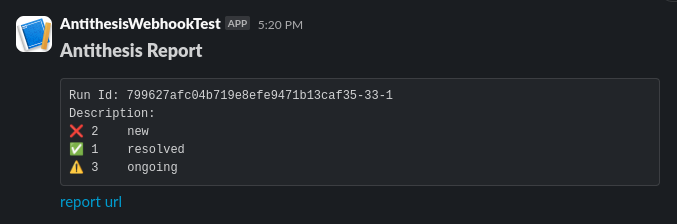
<integration type> is discord or slack.
Importantly, you will need to go to your messaging app to generate these parameters, but then paste the generated parameters into your Antithesis webhook call.
Discord
- Begin in the server where you want your Antithesis results to be posted. Follow the directions in the Discord webhook docs, to create a new webhook. The steps below are correct as of September 2024.
- Navigate to Server Settings and then to Integrations.
- Create a new webhook.
- Copy the webhook URL.
- Paste the callback url and token into your webhook call as follows:
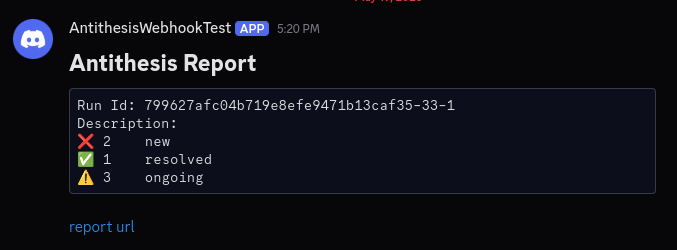
Slack
- First, create a Slack app associated with the workspace where you want to post the results. The most current directions for doing this can be found at the Slack webhook docs documentation. The steps below are correct as of September 2024.
- Click on dropdown arrow next to the name of your workspace. This will create a dropdown menu. Select Tools & settings and then Manage apps.
- On the new screen, select Build. The Create New App button will pop up a menu. Select From scratch. Follow the prompts to create a new app.
- On the new screen, select Incoming Webhooks in the Features section. Ensure that incoming webhooks are enabled and click the button labeled Add New Webhook to Workspace.
- Pick the channel where you want your Antithesis results to be posted, and click Allow.
- You should now see a section Webhook URLs for Your Workspace. Copy the webhook URL, which will look something like:
- Following the example at the top of this page, paste the callback url and token into your webhook call: